01 March 2014

Java - Introduction

Good day to every reader,

Today I am going to introduce you to a new programming language namely "Java". It was first developed by Sun Microsystems, which was acquired by Oracle in 2010. Java is vastly used all around the world by most programmers, especially by those who seek portability and security in programming.

JAVA AND OOP

Java is an OOP (Object Oriented Programming) language, meaning it concerns more on objects and their attributes as well their methods than on the procedure of how the program runs — like in the C Programming Language which is also known as the procedural programming language.

JAVA vs. C

Despite the differences between the two languages, knowledge in C Programming is preferably required because the syntax of a Java code is pretty much similar to that of a C code. Some new keywords I will explain today are: Class, Object, Attribute, and Method.


DEFINITIONS

Classes and Objects

I will explain these two terms with an illustration:
Let's say you have a Printer. We all know that there are many manufacturers of printers. There are Canon printers, HP printers, Xerox printers, and so on.
When you talk about a Printer, you are actually talking about printers in general, which is abstract.
But when you talk about a Canon Laserjet Printer, you talk about a real thing, something that exists.

In this case, Printer is a Class and a Canon printer is an Object created based on the Printer Class.

 To sum up, a Class is a blueprint of an Object, and an Object is a physical representation of a Class.

Attributes

An Object (or a Class, which is actually the same, because an Object is created based on a Class) has certain attributes.

Examples:
A box has width, height, depth, surface area, and volume.
A phone has price, manufacturer, type, dimensions, weight, etc.
A car has maximum speed, price, manufacturer, type, color, number of doors, number of tires, etc.

Basically, Attributes are what make up an Object (or a Class). You can think of them as the ingredients of a recipe — The recipe itself is a Class, while the food cooked based on it is an Object.

Note:
The Attributes of a Class (or an Object) must be declared as private, so it cannot be accessed other than through its Methods. This will be explained in the next post.


Methods

Methods are (or should be) the only way you access the Attribute of a Class (or an Object).
If not, you can imagine if someone has access to your program, he can easily set the attributes' values to those he wants.

Let's assume that we have an Object, an ATM.
We all know we can withdraw money using the ATM, provided that there is enough money in our account.
There will be Methods, supposedly withdrawMoney(), setUser(), and getBalance().

First, an ATM user must insert the card, containing their user info into the ATM.
As it is inserted, the ATM calls its Method, setUser(), to set the current user to the card holder.

Next, it will call the next Method which is to getBalance() of the account number which is already provided by the card (obtained using the setUser() Method).

Finally, the user will try to withdraw the money by inputting the amount of money he wants to withdraw. The withdrawMoney() Method will then be called to check whether the amount requested is available in the account. If such amount (or more) is available, the ATM will withdraw the requested amount of money, end the transaction, and eject the card.

As you can see above, there is no way for the user to set the balance of the account because there is no such Method provided.


As this is an introductory post, I will stop right here and continue to expose more about Java and the OOP concept in the next posts.


Happy Coding,
Cyber Frost

20 November 2013

C Functions

Today, I am going to discuss about "Functions".

Functions are a group of statements that is created to perform a special task and returns a value as its result.
Example: The main() function.


From the above definition, you can get:

-Function is a group of statements.

-Function performs special tasks.
 Example: The factorial function is used to calculate the factorial of a given number.

-Function returns a value.
 Please note this: Functions return one value only no matter how many arguments it has as its input(s).


So, how do we create a function?

Use this syntax:
return_type function_name (data_type var1, data_type var2, ....){
 //statement1;
 //statement2;
 //...
return data
}

Let's go straight to creating our own function.
I would like to show you how to create a factorial function by using iteration rather than recursion.

First of all, I need to explain what factorial is and how it works.

n factorial, denoted by n!, is the factorial of n which equals to n * (n-1) * (n-2) * ... * 3 * 2 * 1.

So, 5! = 5*4*3*2*1 = 120 and 7! = 7*6*5*4*3*2*1 = 5040.

If you analyze it thoroughly, you will see that 5! can also be 1*2*3*4*5 and it still equals to 120. The same thing works for 7! too.

Therefore, we can conclude that:
n! = 1 * 2 * 3 *.... * (n-2) * (n-1) * n
We have learned about the For Loop before, now we are going to put it into use.


How are we going to calculate the factorial of n?

It's simple, all we have to do is loop from 1 to n, multiply each values respectively, store it in a variable, then return the result.


The code would be like this:
int fact(int x){
 int i=1;
 int result=1;
 for(i=1; i<=x; i++){
   result = result * i;
 }
 return result;
}

Explanation:
Integer x is the input, Integer i is the loop counter, Integer result is the value that will be returned as the result of the operation performed.

Let me simulate the flow of this program.

Let the input (x) be 5. The program will loop for 5 times.

Loop 1 :
i = 1, result = 1*1 = 1

Loop 2 :
i = 2, result = 1*2 = 2

Loop 3 :
i = 3, result = 2*3 = 6

Loop 4 :
i = 4, result = 6*4 = 24

Loop 5 :
i  = 5, result = 24 * 5 = 120 (answer)


Assuming you want to display your result, you would want to create your main function. The whole program will look like this :

#include <stdio.h>
#include <stdlib.h>


int fact(int x){
 int i = 1;
 int result = 1;
 for(i = 1; i <= x; i++){
   result = result * i; 
 }
 return result;
}


int main(){
  printf("%d\n",fact(5)); 
  system("pause"); 
  return 0; 
}

Description of the code:
The main program prints the factorial of 5. If you want it to print the factorial of different number, you can do so by changing the 5 to another number.

Please note that he result variable is an Integer and an Integer has its limit. It will not be able to calculate the factorial of large numbers. If you wish to calculate the factorial of large numbers, you might want to change the return_type of the function.

Anyway, here's a preview of the program we have just created:


Happy Coding,
Cyber Frost

16 November 2013

Binary Conversions

Hello Coders.

Today I would like to discuss about binary digits.
If you don't know what a binary digit is, here is a simple explanation:

A Binary Digit is a digit of number whose value is either 0 or 1.

In computer, the 0s and 1s indicate electrical signals.
1 indicates ON, 0 indicates OFF.

As we have learned in the previous post about data types,  a character has a size of 1 byte.
1 byte equals to 8 bits.

Basically a set of binary digits make up 1 byte, or 8 bits.

Examples: 1111 1111, 0000 1010, 1010 1110, etc.

What can we do with those 1s and 0s?

You can convert them to decimals, octals, and hexadecimals.
Also, you can use the AND, OR, and XOR operators to perform special conversions.

Converting Binary to Decimal 

Each digit of binary represents a decimal value which is 2n, where 0 <= n < 8 .

The leftmost digit in an 8-bit set of binary digits has the value of 27 while the rightmost has the value of 20. The digits in between has the value from 26 to 21 in a left-to-right order.

Let's go right to the examples:
  • 11111111 = 1*2^7 + 1*2^6 + 1*2^5 + 1*2^4 + 1*2^3 + 1*2^2 + 1*2^1 + 1*2^0 = 255
  • 00000001 = 0*2^7 + 0*2^6 + 0*2^5 + 0*2^4 + 0*2^3 + 0*2^2 + 0*2^1 + 1*2^0 = 1
  • 01010101 = 0*2^7 + 1*2^6 + 0*2^5 + 1*2^4 + 0*2^3 + 1*2^2 + 0*2^1 + 1*2^0 = 85
  • 00110010 = 0*2^7 + 0*2^6 + 1*2^5 +1*2^4 + 0*2^3 + 0*2^2 + 1*2^1 + 0*2^0 = 50

So let's say you have sets of 3-bit binary digits:
  • 111 = 1*2^2 + 1*2^1 + 1*2^0 = 7
  • 010 = 0*2^2 + 1*2^1 + 0*2^0 = 2
  • 000 = 0*2^2 + 0*2^1 + 0*2^0 = 0
  • 100 = 1*2^2 + 0*2^1 + 0*2^0 = 4 

 Or sets of 4-bit binary digits:
  • 0111 = 0*2^3 + 1*2^2 + 1*2^1 + 1*2^0 = 7
  • 1010 = 1*2^3 + 0*2^2 + 1*2^1 + 0*2^0 = 10
  • 0100 = 0*2^3 + 1*2^2 + 0*2^1 + 0*2^0 = 4
  • 1001 = 1*2^3 + 0*2^2 + 0*2^1 + 1*2^0 = 9
 There you go. You are now capable of converting binary digits to its decimal value.


Converting Binary to Octal

In converting binary(base-2) to octal(base-8), you need to understand that octals are numbers ranging from 0-7 only. This means that 777 exists while 008 doesn't.

To convert an 8-bit binary to its octal value, you need to separate it into 3-bits at a time, starting from the right. Like this:
1111 1111 =  11 | 111 | 111
Three bits at a time? Why is there a 2-bit part then? Simple add 0 in front to make it 3-bits. Notice that 011 == 11 in binary. So, here is the digits after separation:
011 | 111 | 111
Then what?

Calculate each part, convert them to its decimal value.

011 = 2+1 = 3
111 = 4+2+1 = 7
111 = 4+2 +1 = 7

So, 11111111(2) = 377(8)

Another example:
1010 1010 = 010 | 101 | 010 = 252(8)

Converting Binary to Hexadecimal

Hexadecimal numbers range from 0 to F: 0,1,2,3,4,5,6,7,8,9,A,B,C,D,E,F.
In order to convert to Hexadecimals(base-16), you will need to separate the bits four at a time.

Example:
1111 1111(2) = ..... (16)

= 1111 | 1111 
= 1*2^3 + 1*2^2 + 1*2^1 + 1*2^0 | 1*2^3 + 1*2^2 + 1*2^1 + 1*2^0
= 15 | 15
= FF(16)

1001 1100(2) = ..... (16)

= 1001 | 1100
= 1*2^3 + 0*2^2 + 0*2^1 + 1*2^0 | 1*2^3 + 1*2^2 + 0*2^1 + 0*2^0
= 9 | 12
= 9C(16)

Using the AND(&&) Operator

Here is what the AND operator does when two values are passed to it.

p   q   p AND q
   1       1         1
1   0         0
0   1         0
0   0         0

Let's assume we have two sets of binary digits: 11110101 and 00110101. Using the AND operator, we will receive the result:

11110101
00110101 AND
00110101

Another example with 00001110 and 11101100.

00001110
11101100 AND
00001100


Using the OR(||) Operator

The table of OR looks like this:

p   q   p AND q
   1       1         1
1   0         1
0   1         1
0   0         0

So, if your perform an OR on 11110000 and 00001111, you will get:

11110000
00001111 OR
11111111
It is similar to the AND operator, only with different rules.

Using the XOR(^) Operator

The XOR Operator is also called the Exclusive OR. Its table has values like this:

p   q   p AND q
   1       1         0
1   0         1
0   1         1
0   0         0

It can be used to swap digits. Let me show you.


Let A be 00110011 and B be 01011100.
We would like to swap the value of A and B.
We can use the XOR Operator to accomplish the task, like this:

A = A ^ B
B = A ^ B
A = A ^ B

The formula can also be simplified as A^=B^=A^=B

The process looks like this:
A = 00110011
B = 01011100 XOR
A = 01101111

A = 01101111
B = 01011100 XOR
B = 00110011 ------------------- B is now A

A = 01101111
B = 00110011 XOR
A = 01011100 ------------------- A is now B
These concepts can be applied to your programming. For example you can create a swap function using the XOR operator.


Good luck trying, pals.


Regards,
Cyber Frost

09 November 2013

The For Loop in C

The loop is one of the most critical parts of programming.
According to Wikipedia, a loop is a sequence of statements which is specified once but which may be carried out several times in succession. Read more about Loops here.

So, basically, a loop is a statement used to repeat one or more actions for a specified number of times.

There are two types of loop :
  1. Finite Loop
  2. Infinite Loop
When looping, in most cases, you would want to avoid infinite loops because it might crash your whole system.

There are actually several kinds of Loops in C which are the For loop, the While loop, and the Do...While Loop. But today, we are going to discuss about the For loop.


Let's go straight to the syntax of declaring a for loop:
for(initial_condition;loop_condition;increment){
//statement1
//statement2
//....
}
The initial condition is set by assigning a value to a variable, called Control Variable.
The loop condition is the condition to be checked at the start of every loop cycle. If the condition is true, continue the looping process, else, break(or stop) the process.
The increment is the value added to the Control Variable at the end of every loop cycle.
The statements within the parentheses are the statements to be executed in every cycle of the loop.


Example:

Output numbers from 1 - 10 using no more than 1 printf function.
 #include <stdio.h>
#include <stdlib.h>

int main(){
 //declaration of control variable
 int i = 0;

 //declaration of for loop
 for(i = 1; i <= 10; i++){
     printf("%d\n", i);  
    }
   
 system("Pause");  
 return 0;  
}
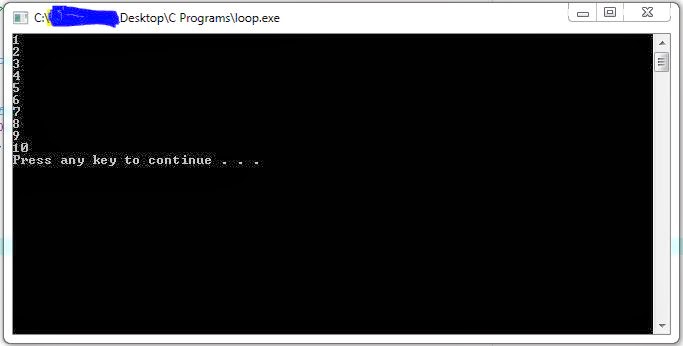
Magically, it works. Here is the result :


Let me explain the loop declaration part.

There is i = 1, this means, the count starts from 1.
Then, there is i <= 10, this indicates that the loop will only end after i is larger than 10. If i is still in range (1-10), the loop will continue to display i, which is incremented by 1 every cycle by using the i++ statement.

Note : You can also use +1 increment this way -> i += 1


Okay, let's mess a little with the increment part of loop now.
Let us create two loops to display odd and even numbers from 1-10, respectively.

#include <stdio.h>
#include <stdlib.h>

int main(){
 //declaration of control variable
 int i = 0;

 //declaration of for loop for odd numbers

 printf("Odd numbers:\n");
 for(i = 1; i <= 10; i += 2){
     printf("%d\n", i);  
    }

 //declaration of for loop for even numbers  
   
 printf("\nEven numbers:\n");  
 for(i = 2; i <= 10; i += 2){
     printf("%d\n", i);  
    }  
   
   
 system("Pause");  
 return 0;  
}

As you can see from the code, there are two for loops having the same increment but producing different results. If you look closely, you will find that the only difference is in the initial value of both loops. To obtain odd numbers, you start from 1 and add by 2 each loop. However, in order to display even numbers, you need to start from 2(the first even number in range) and increment it by 2 through the loop. You can see the result below:


To close this post, I would like to present you with an example of creating an infinite loop.
Despite the fact that we are doing it in purpose right now, it might happen a lot as accidents in programming later on. Here it is:

#include <stdio.h>
#include <stdlib.h>

int main(){
 //declaration of control variable
 int i = 0;

 //declaration of for loop for odd numbers

 for(i = 1; i <= 10; i--){
     printf("*");  
    }
    
   
 system("Pause");  
 return 0;  
}

 It prints the * symbol endlessly. Why? As you can see, the loop condition is i <= 10 while the loop increment is i--. This ensures that the i never reaches 10 or above(not even 2 actually).

Note: To stop the program, press Ctrl + C


Loops can be used for many occasions, you have to experiment by yourself in order to be fluent in using loops. Any questions are welcomed. Post them here as comments or send it to my email at cyberfrostprogrammer@yahoo.com.

Thank you for reading.


Happy Coding,
Cyber Frost


30 October 2013

Arrays and Self-Pointers

Let's jump a little bit further to "Arrays and Self-Pointers".
I apologize to go directly to this part, but I do have to explain this now. I will go back to the basics later on.

First of all, let's define the meaning of an Array. An array is a group of contiguous memory location that has a predefined size as well as one data type for all its elements.

Before I can explain the terms contiguous, predefined size, and one data type, I will first show you an example of array declaration :

  data_type array_name[size] = {element-1, element-2, element-2, ... , element-size};
Just like variables, you need to initialize the elements in an Array before using it to prevent runtime errors. It is done by assigning values to each of the elements in the array using the equal sign (=) then followed by an open parenthesis and the value of element-1, element-2, and so on, then finally closing it up with a closing parenthesis.

 Now, I am going to explain about the terms.
  • Contiguous
           It means every element in an Array is located next to one another in the memory depending on  their index. Why is this so important?

           With this feature of array, it is possible to do sorting, searching, and many more since you can easily loop through every element in an Array due to its elements contiguous memory location. This will be shown in an example later in the post.

  • A Predefined Size
           Since an Array's memory locations for its elements need to be contiguous, it needs a proper declaration for size, so that it can allocate the space in the memory for storing the value of the elements it has.Once the size is declared, an array cannot be resized during runtime.

  •  One Data Type
            An Array can only store elements of one uniform data type.
            Example : an int array can only store integer values in it.
            Why? If you refer to the previous post about variables, you can see that every data type has different sizes, so, if you store a double value into an integer array, you will absolutely get the wrong value when you use the value again, which is why you can only store values with the same data type.

Viewing The Value of An Array Element

To look at the value of an array element, you can simply use printf or any other output functions in C.

Note : An array index starts from 0, so an array[0] will have indexes of 0-9 only.

#include <stdio.h>
#include <stdlib.h>


int main(){
//Declaring an Integer Array with the size of 4
 int array[4] = {1, 3, 5, 7};
//Prints the value in index 0 of array[4]
 printf("array[0] = %d\n", array[0]);  
//Prints the value in index 1 of array[4]
 printf("array[1] = %d\n", array[1]);  
//Prints the value in index 2 of array[4]
 printf("array[2] = %d\n", array[2]);  
//Prints the value in index 3 of array[4]
 printf("array[3] = %d\n", array[3]);
/*Pausing the screen to see results,
**because dev-cpp does not freeze at the end of program
**/ 
 system("Pause");
//returns 0 to indicate successful run
 return 0;  
}
 To see how it works, just type the code into your Dev-Cpp (or other IDEs) and run.

Assigning Values to Array Elements

To assign values to an array element, you simply use this syntax:
array_name[index] = value;
 Example:

    #include <stdio.h>
    #include <stdlib.h>


    int main(){
    //Declaring an Integer Array with the size of 4
     int array[4] = {1, 3, 5, 7};
    //Prints the value in index 0 of array[4] before value changes
     printf("array[0] = %d\n", array[0]);
    //Asigns value 9 to array[0]
     array[0] = 9;
    //Prints the value in index 0 of array[4] after value changes
     printf("array[0] = %d\n", array[0]); 
    system("Pause");
    return 0;
    }


Self-Pointers

Now, we come to an interesting part of the Array data structure.
Please take note that : An array's name is  the address of its first element in memory.

Let's say you have an array of size 10.
Assuming that the address of its first element is 123, the address of its second element would be 124, and the address of its third element would be 125, and so on. How is that possible? Scroll to the Contiguous section.

Now how can we make use of that?
First, I would like to introduce Pointer to you.
A pointer is a variable that stores the memory location of another storage types(variables, arrays, etc.).
Okay, so it stores memory locations, now what?
If you assign an array's name to it, what happens?  It stores the location of the first element of the array in the memory. Then what can you do with that?
You can easily do pass-by-reference to functions, you can do self-pointing, you can also view/modify the value of an array element without actually having to access the array itself (indirection), and many more.

As an example, I will show you how to use pointers to self-point using an array.

#include <stdio.h>
#include <stdlib.h>


int main(){
//Declaring an Integer Array with the size of 4
 int array[4] = {1, 3, 5, 7};

 printf("Viewing array elements through indexes :\n");
//Prints the value in index 0 of array[4]
 printf("array[0] = %d\n", array[0]);  
//Prints the value in index 1 of array[4]
 printf("array[1] = %d\n", array[1]);  
//Prints the value in index 2 of array[4]
 printf("array[2] = %d\n", array[2]);  
//Prints the value in index 3 of array[4]
 printf("array[3] = %d\n", array[3]);
 printf("\nViewing array elements through self-pointers :\n");
 //Prints the value in location 'array'
 printf("array[0] = %d\n", *array);  
//Prints the value in location 'array+1'
 printf("array[1] = %d\n", *(array+1));  
//Prints the value in location 'array+2'
 printf("array[2] = %d\n", *(array+2));  
//Prints the value in location 'array+3'
 printf("array[3] = %d\n", *(array+3));

 system("Pause");
 return 0;  
}


You can also assign values to an array element using a self-pointer.

    #include <stdio.h>
    #include <stdlib.h>


    int main(){
    //Declaring an Integer Array with the size of 4
     int array[4] = {1, 3, 5, 7};
    //Prints the value in index 1 of array[4] before value changes
     printf("array[1] = %d\n", array[1]);
    //Asigns value 9 to array[1] using a pointer
     *(array+1) = 9;
    //Prints the value in index 1 of array[4] after value changes
     printf("array[1] = %d\n", array[1]); 
    system("Pause");
    return 0;
    }


That was just a preview on Pointers. More on next posts.
Hope it inspires you.


Happy Coding,
Cyber Frost

27 October 2013

Variables in C

Just like any other programming languages, C also has variables.
If you do not know already, a variable is a storage location for several types of values.
There are 4 basic types of variable type specifiers in C, according to Wikipedia :

-char
-int 
-float 
-double

 
which can be combined with optional specifiers :

-signed 
-unsigned 
-short 
-long


In total, there are 28 basic data types in C. Here is the complete list along with the description: http://en.wikipedia.org/wiki/C_data_types

The syntax to declare a variable in C is simple, which is :
data_type var_name = initial_value;
Let's see how we use it in a C source code:

#include <stdio.h>
#include <stdlib.h>

int main(){
//declaring the variables
int a = 5;
int b = 2;
int c = a + b;
//printing the value of c, which is a+b, or 5+2
printf("%d",c);
//printing a new line
printf("\n");
//pausing the program to see the result
system("Pause");
return 0;
}
If you can see, I wrote several lines of words using a "//" sign in front. They are called comments. Comments will not be run by the compiler, they are only used to aid programmers to understand the source code. More about comments in the next post.

From the code you can see that I declared an Integer a with the initial value of 5 and Integer b with the initial value of 2. I then declared another Integer c with the value of a + b. Next, I print out the result, which is the value of c using printf.
You can also use other data types for different operations. Let's do division with integer and float data types for example. Here is the code :
#include <stdio.h>
#include <stdlib.h>

int main(){
//declaring the variables
float a=5;
int b=2;
float c=a/b;
//printing the value of c, which is a/b, or 5/2
printf("%f",c);
//printing a new line
printf("\n");
//pausing the program to see the result
system("Pause");
return 0;
}
The code is pretty much the same, with small modifications here and there.
If you notice, we cannot use integers as the dividend here. Why?
An Integer will always be a non-decimal number, which will give you a wrong result of the division if you declare a or c, or both, as an Integer. Ex : 5/2 = 2.

There you go. Now you can apply variables in your codes. Congratulations !


Happy Coding,
Cyber Frost

Basic Structure of C Programs

Every programming language has its basic structure, that is, how and where the lines of code are written.

In C, it looks like this :
#include <stdio.h>

int main(){
    //statement1;
    //statement2;
    //..........;

return 0;
}
Let's start from the top.

The #include statement is used for including a header file into your program. In this case, stdio.h.
It must precede any other lines of code in your source file.
The int is a return type specifier for the function main(). Every C program must have a main() function in order to run. Even though your program has a thousand lines of code, it will start by executing the main() function.

More about return type of main():
The main() function returns 0. which is an int as an indicator to the compiler that the program was well-executed (without error).

Then, there are these symbols, the {parentheses}, to indicate the start and the end of the main() function. Every line of code, or statement, within the parentheses must be followed by a semicolon (;).

Finally, there is the return statement, which pretty much describes its function already : to return a value from the function it represents. In this case, it is the main() function.

The End. By now you should have the basic knowledge to start writing codes in C.


Happy Coding,
Cyber Frost

Coding in C using Dev-Cpp IDE

Greetings, fellow coders.

Today, I am going to show you an open-source application which enables easy coding and compiling of C programs. It is named Dev-Cpp or Dev-C++, which can be used as an IDE(Integrated Development Environment) to code and to compile C++ as well as C programs.

You can get a free copy of it here :  http://www.bloodshed.net/dev/devcpp.html

After you downloaded and installed Dev-Cpp on your computer, run the devcpp.exe file.

After the splash screen you will see :


Simply close the Tip of the Day window and we shall continue.

At the top left of Dev-Cpp, you will see the File menu, click on it to start a new Project or Source.

Let's try to create a C source file.
Click on File>New>Source File. A new tab will open up, like this :


Now type in this code to the code editor:
#include <stdio.h>
#include <stdlib.h>

int main(){
 printf("Hello World\n");
 system("Pause"); 
 return 0;  
}
 Done? Now click the Execute menu and choose Compile & Run or simply press F9.
 It will then ask you to save the source file first. Just save it wherever you desire, but make sure it is in the C source files (*.c) format.
 After saving, a window will show up, looking like this :


Congratulations, you have successfully created a C program using Dev-Cpp !

On the next few posts, I will be giving tutorials on creating C programs with this user-friendly IDE.


Happy Coding,
Cyber Frost

18 September 2013

Project Euler - Problem 11

Hello readers,
It is true that I haven't been posting for a long time. I was bothered by my university entrance preparation. Now that I managed to enter a university, which is Binus International University in Jakarta and majoring in Computer Science, I can finally post again.

I was doing a Project Euler problem earlier today.
Link to Problem 11 : http://projecteuler.net/problem=11

To solve this seemingly confusing problem, I use VB.NET.
Here is the solution.

Module Module1

    Sub Main()
        Dim list1 As String = "08 02 22 97 38 15 00 40 00 75 04 05 07 78 52 12 50 77 91 08 49 49 99 40 17 81 18 57 60 87 17 40 98 43 69 48 04 56 62 00 81 49 31 73 55 79 14 29 93 71 40 67 53 88 30 03 49 13 36 65 52 70 95 23 04 60 11 42 69 24 68 56 01 32 56 71 37 02 36 91 22 31 16 71 51 67 63 89 41 92 36 54 22 40 40 28 66 33 13 80 24 47 32 60 99 03 45 02 44 75 33 53 78 36 84 20 35 17 12 50 32 98 81 28 64 23 67 10 26 38 40 67 59 54 70 66 18 38 64 70 67 26 20 68 02 62 12 20 95 63 94 39 63 08 40 91 66 49 94 21 24 55 58 05 66 73 99 26 97 17 78 78 96 83 14 88 34 89 63 72 21 36 23 09 75 00 76 44 20 45 35 14 00 61 33 97 34 31 33 95 78 17 53 28 22 75 31 67 15 94 03 80 04 62 16 14 09 53 56 92 16 39 05 42 96 35 31 47 55 58 88 24 00 17 54 24 36 29 85 57 86 56 00 48 35 71 89 07 05 44 44 37 44 60 21 58 51 54 17 58 19 80 81 68 05 94 47 69 28 73 92 13 86 52 17 77 04 89 55 40 04 52 08 83 97 35 99 16 07 97 57 32 16 26 26 79 33 27 98 66 88 36 68 87 57 62 20 72 03 46 33 67 46 55 12 32 63 93 53 69 04 42 16 73 38 25 39 11 24 94 72 18 08 46 29 32 40 62 76 36 20 69 36 41 72 30 23 88 34 62 99 69 82 67 59 85 74 04 36 16 20 73 35 29 78 31 90 01 74 31 49 71 48 86 81 16 23 57 05 54 01 70 54 71 83 51 54 69 16 92 33 48 61 43 52 01 89 19 67 48 "
'create list to be processed later on
        Dim list2(400) As Integer
        Dim x, i As Integer
        i = 1
        For x = 0 To 399
            list2(x) = CInt(Mid(list1, i, 2))
            i = i + 3
        Next
        i = 1
        For x = 0 To 399
            If i = 20 Then
                Console.Write(list2(x))
                Console.WriteLine()
                i = 1
            ElseIf i < 20 Then
                i = i + 1
                Console.Write(list2(x) & " ")
            End If
        Next
        Console.WriteLine()

'processing stages
        Dim temp, largest, pos As Integer
        'horizontal
        For x = 0 To 395
            If x = 16 Then x = 20
            If x = 36 Then x = 40
            If x = 56 Then x = 60
            If x = 76 Then x = 80
            If x = 96 Then x = 100
            If x = 116 Then x = 120
            If x = 136 Then x = 140
            If x = 156 Then x = 160
            If x = 176 Then x = 180
            If x = 196 Then x = 200
            If x = 216 Then x = 220
            If x = 236 Then x = 240
            If x = 256 Then x = 260
            If x = 276 Then x = 280
            If x = 296 Then x = 300
            If x = 316 Then x = 320
            If x = 336 Then x = 340
            If x = 356 Then x = 360
            If x = 376 Then x = 380
            If x = 396 Then x = 400
            temp = list2(x) * list2(x + 1) * list2(x + 2) * list2(x + 3)
            If temp > largest Then
                largest = temp
                pos = x
            End If
        Next
        Console.WriteLine("Numbers(H) : " & list2(pos) & ", " & list2(pos + 1) & ", " & list2(pos + 2) & ", " & list2(pos + 3))
        Console.WriteLine("Product(H) : " & largest)


        'vertical
        temp = 0
        largest = 0
        For x = 0 To 319

            temp = list2(x) * list2(x + 20) * list2(x + 40) * list2(x + 60)
            If temp > largest Then
                largest = temp
                pos = x
            End If
        Next
        Console.WriteLine("Numbers(V) : " & list2(pos) & ", " & list2(pos + 20) & ", " & list2(pos + 40) & ", " & list2(pos + 60))
        Console.WriteLine("Product(V) : " & largest)

        'diagonal1
        temp = 0
        largest = 0
        For x = 0 To 336
            If x = 16 Then x = 20
            If x = 36 Then x = 40
            If x = 56 Then x = 60
            If x = 76 Then x = 80
            If x = 96 Then x = 100
            If x = 116 Then x = 120
            If x = 136 Then x = 140
            If x = 156 Then x = 160
            If x = 176 Then x = 180
            If x = 196 Then x = 200
            If x = 216 Then x = 220
            If x = 236 Then x = 240
            If x = 256 Then x = 260
            If x = 276 Then x = 280
            If x = 296 Then x = 300
            If x = 316 Then x = 320
            temp = list2(x) * list2(x + 11) * list2(x + 22) * list2(x + 33)
            If temp > largest Then
                largest = temp
                pos = x
            End If
        Next

        Console.WriteLine("Numbers(D1) : " & list2(pos) & ", " & list2(pos + 11) & ", " & list2(pos + 22) & ", " & list2(pos + 33))
        Console.WriteLine("Product(D1) : " & largest)


        'diagonal2
        temp = 0
        largest = 0
        For x = 396 To 60 Step -1
            If x = 379 Then x = 376
            If x = 359 Then x = 356
            If x = 339 Then x = 336
            If x = 319 Then x = 316
            If x = 299 Then x = 296
            If x = 279 Then x = 276
            If x = 259 Then x = 256
            If x = 239 Then x = 236
            If x = 219 Then x = 216
            If x = 199 Then x = 196
            If x = 179 Then x = 176
            If x = 159 Then x = 156
            If x = 139 Then x = 136
            If x = 119 Then x = 116
            If x = 99 Then x = 96
            If x = 79 Then x = 76
            If x = 59 Then x = 56
            temp = list2(x) * list2(x - 19) * list2(x - 38) * list2(x - 57)
            If temp > largest Then
                largest = temp
                pos = x
            End If
        Next
        Console.WriteLine("Numbers(D2) : " & list2(pos) & ", " & list2(pos - 19) & ", " & list2(pos - 38) & ", " & list2(pos - 57))
        Console.WriteLine("Product(D2) : " & largest)
 
    End Sub

End Module

That was the code, it consists of four major processes, which is to search for the largest product of four numbers :
1. Horizontally
2. Vertically
3. Diagonally from top left to bottom right
4. Diagonally from bottom left to top right

Running the code above, we will obtain the answer, which is 70600674.

Take your time to understand the code, no need to hurry.
I will be back with more solutions.


Happy Coding,
Cyber Frost 

19 November 2012

Fibonacci Calculator

 Today, I'm going to give you a code to add a requested number of Fibonacci numbers into a ListBox.

Components needed :
  • 1 List Box
  • 1 Text Box
  • 1 Label
  • 1 Button


Let the Fibonacci Sequence be  : 1, 1, 2, 3, 5, 8, 13, 24, ...
Let n be the number of the Fibonacci numbers to be added to the list List1.
Let l be the number of loops to be conducted.


Private Sub Command1_Click()
Dim a, b, c As Double
Dim l, n As Integer
a = 0
b = 1
n = Val(Text1.Text)
For l = 1 To n
a = b
b = c
c = a + b
List1.AddItem (c)
Next
End Sub


The idea here is to swap between a,b, and c to obtain the next number in the Fibonacci sequence.
It's as simple as that.

Here's a preview of what it looks like:


Note:
The Fibonacci sequence is an interesting set of numbers. You might want to do some research on it.


Happy Coding,
Cyber Frost

01 October 2012

Project Euler - Problem 6 (Java)

This time, I'm giving out the solution of Problem 6 in the form of Java code.

Without wasting more time, here's the code:

class euler6 {
public static void main (String [] args) {
int x = 0;
int y = 0;
for(int i=1;i<101;i++) {
x += i;
}

for(int j=1;j<101;j++) {
y += Math.pow(j, 2);
}

System.out.println("Square of the sum of the first one hundred natural numbers : " + Math.pow(x, 2));
System.out.println("Sum of the squares of the first one hundred natural numbers : " + y);
System.out.println("Hence, the difference of both numbers is " + Math.pow(x, 2) + " - " + y + " = " + (Math.pow(x, 2) - y));
}
}

And, here's a preview of its output.

As we can see, The answer doesn't match the one calculated in Visual Basic.
It is 2.516415E7.

What is E? E is a representation of exponential values. Let's take the answer above as an example.

We've got 2.516415E7, what does that mean? It actually means multiplying 2.516415 by E7(which is mathematically written as 10^7). Therefore, the answer could be written as :

 2.516415 x 10 ^ 7 

which equals to 25164150, the correct answer.

24 September 2012

Project Euler - Problem 6

The sum of the squares of the first ten natural numbers is,
12 + 22 + ... + 102 = 385
The square of the sum of the first ten natural numbers is,
(1 + 2 + ... + 10)2 = 552 = 3025
Hence the difference between the sum of the squares of the first ten natural numbers and the square of the sum is 3025 - 385 = 2640.
Find the difference between the sum of the squares of the first one hundred natural numbers and the square of the sum.

Answer:
This is a simple problem. Again, I'm using VB.NET to solve this problem. But this time, it is not the Windows App, it's the Console Application. The reason is that we do not need any User Interface here.

So, let's just get right to the code.

Code:

Module Module1

    Sub Main()
        Dim x, y As Double

        For i As Integer = 1 To 100
            x = x + i
        Next

        For j As Integer = 1 To 100
            y = y + (j ^ 2)
        Next

        Console.WriteLine("Square of the sum of the first one hundred natural numbers : " & x ^ 2)
        Console.WriteLine("Sum of the squares of the first one hundred natural numbers : " & y)
        Console.WriteLine("Hence, the difference of both numbers is " & (x ^ 2) & " - " & y & " = " & (x ^ 2) - y)
    End Sub

End Module


Here's what it looks like :


From the picture above, we can see that the answer is 25164150

Good luck trying !

Cyber  Frost


23 September 2012

Project Euler - Problem 28

Starting with the number 1 and moving to the right in a clockwise direction a 5 by 5 spiral is formed as follows:
21 22 23 24 25
20  7  8  9 10
19  6  1  2 11
18  5  4  3 12
17 16 15 14 13

It can be verified that the sum of the numbers on the diagonals is 101.
What is the sum of the numbers on the diagonals in a 1001 by 1001 spiral formed in the same way?


To solve this problem, I used VB.NET. Here are the design and the code.

Design:


It consists of 1 Textbox, 1 Label, and 1 Button.


Code:

Public Class Form1
    Dim x, y, z, a, b, c As Integer
    Dim num As Double
    Private Sub Button1_Click(ByVal sender As System.Object, ByVal e As System.EventArgs) Handles Button1.Click
        c = 1
        z = 1
        x = TextBox1.Text
        If x > 0 And x Mod 2 = 1 Then
            For a = 1 To x * 2 - 2
                y = 2 * c
                z = z + y
                num = num + z
                b = b + 1
                If b = 4 Then
                    c = c + 1
                    b = 0
                End If
            Next
        Else
            MsgBox("Spiral must be of odd size and has a minimum size of 1.")
            End
        End If
        Label1.Text = num + 1
    End Sub
End Class


Explanation:

The Textbox receives the size of the spiral.
Note that the size must be an odd number starting from the minimum of 1. 
The sum of the numbers on the diagonals will be shown in the Label. 

Answer to PROBLEM 28 of Project Euler :
The sum of the numbers on the diagonals in a 1001 by 1001 spiral formed in the same way is  669171001.


Happy Coding !
Cyber Frost

VB.NET - PROGRAM 1

Name : Text Transport
Difficulty : Very Easy

Today, I will show you how to make a program which transports the text input in the Textbox into a Label.


First of all, create a new Windows Application Project.

An empty form will show.


Now, drag a Textbox, a Label, and a Button from the toolbox on the left. It will look somewhat like this :


Click once on the Form. Change its "Text" Property to : Text Transport
If you do not know already, the properties box is located on the lower right of your VB.NET screen.
  
Click once on the Button and change its "Text" Property to : Transport


Click once on the Label and clear its "Text" Property.

It will now look like this :


Here comes the fun part, coding. 

Simply right click on the form and choose View Code.
 Now, you should be in the code editor.

All you have to do is copy this code and paste it into your code editor:

Public Class Form1

    Private Sub Button1_Click(ByVal sender As System.Object, ByVal e As System.EventArgs) Handles Button1.Click
        Label1.Text = TextBox1.Text
    End Sub

End Class


Next, run the program by pressing F5 or clicking the green play button on the top. 
 A window will show, you may type anything into the textbox (for example : ABC) and then clicking on the Transport button. The text on the Textbox (which is ABC) will be copied onto the Label which indicates that you are successful.


Happy Coding !

Cyber Frost

02 June 2012

Apology

I would like to apologize for not writing for a long time.
It was merely because I was bombarded with tasks and exams.
As I have long stopped writing and researching about computing matters, I am still in search of inspiration.
Meanwhile, I would like to share an extremely useful link.

Here it is : http://home.mcafee.com/virusinfo

It is by far the most complete virus database which provides information on the most recent computer viruses, its description, indications of infection, methods of infection, virus characteristics, and even the removal instructions.


Hope it helps 
Cyber Frost

03 September 2011

Blue Screen Of Death (BSOD)

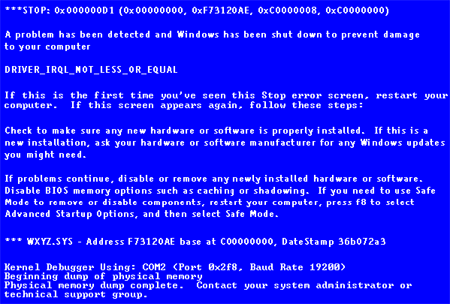
 A Blue Screen Of Death, or officially known as the STOP Error is a system crash happening due to hardware or driver(software) errors. A STOP Error can also be caused by a critical boot loader error, where the operating system is unable to start from the bootable drive due to the presence of an incorrect disk driver, a damaged file system, or a similar problem.

The Blue Screen of Death

While it may seem odd to think about purposefully causing a Blue Screen Of Death (BSOD), Microsoft includes such a provision in Windows XP (Vista also). This might come in handy for testing and troubleshooting your Startup And Recovery settings, Event logging, and for demonstration purposes.

Here's how to create a BSOD:

Launch the Registry Editor (Regedit.exe).
Go to HKEY_LOCAL_MACHINE\SYSTEM\CurrentControlSet\Services\i8042prt\Parameters.
Go to Edit, select New | DWORD Value and name the new value CrashOnCtrlScroll.
Double-click the CrashOnCtrlScroll DWORD Value, type 1 in the Value Data textbox, and click OK.
Close the Registry Editor and restart Windows XP.
When you want to cause a BSOD, press and hold down the [Ctrl] key on the right side of your keyboard, and then tap the [ScrollLock] key twice. Now you should see the BSOD.

If your system reboots instead of displaying the BSOD, you'll have to disable the Automatically
Restart setting in the System Properties dialog box. To do so, follow these steps:

Press [Windows]-Break.
Select the Advanced tab.
Click the Settings button in the Startup And Recovery panel.
Clear the Automatically Restart check box in the System Failure panel.
Click OK twice.

Here's how you remove the BSOD configuration:

Launch the Registry Editor (Regedit.exe).
Go to HKEY_LOCAL_MACHINE\SYSTEM\CurrentControlSet\Services\i8042prt\Parameters.
Select the CrashOnCtrlScroll value, pull down the Edit menu, and select the Delete command.
Close the Registry Editor and restart Windows XP.
Note: Editing the registry is risky, so make sure you have a verified backup before making any changes.

Additional Note on the steps provided to create a BSOD :
Hackers can make use of this trick to crash your computer over and over again by simply creating a .vbs or .bat file which will change the values in the Registry, and then pressing the keys needed automatically.

References:
-http://en.wikipedia.org/wiki/Blue_Screen_of_Death
-http://psacake.com/web/jr.asp

Fixing the BSOD : http://support.microsoft.com/kb/958233


Thank you for reading.
Cyber Frost

02 August 2011

Types of Computer Viruses

Bootsector Virus:
A virus which attaches itself to the first part of the hard disk that is read by the computer upon bootup. These are normally spread by floppy disks.

Note: Floppy disks are kind of outdated, so, perhaps, it's spread through portable hard disks or boot CDs.

Macro Virus:
Macro viruses are viruses that use another application's macro programming language to distribute themselves. They infect documents such as MS Word or MS Excel and are typically spread to other similar documents.

This is a nightmare to every office workers. Once your computer is infected, your whole documents will be destroyed. So, always do backups!
 

Memory Resident Viruses:
Memory Resident Viruses reside in a computers volitale memory (RAM). They are initiated from a virus which runs on the computer and they stay in memory after it's initiating program closes.

Rootkit Virus:
A rootkit virus is an undetectable virus which attempts to allow someone to gain control of a computer system. The term rootkit comes from the linux administrator root user. These viruses are usually installed by trojans and are normally disguised as operating system files.

Polymorphic Viruses:
Well, poly means many and morph means form. So, this type of virus will replicate itself into many forms of file. Now, you might see it as a .pdf file. Next time you log in, it might have changed itself into a .dll file. It is extremely difficult to detect manually. Even some antivirus might miss it while scanning for viruses.

Logic Bombs/Time Bombs:
These are viruses which are programmed to initiate at a specific date or when a specific event occurs. Some examples are a virus which deletes your photos on Halloween, or a virus which deletes a database table if a certain employee gets fired.

This is my favorite type of virus, it is completely unpredictable, only the coder of the virus knows what will happen and when it will happen.
DeepFreeze might be able to counter this type of virus.

Important Note:
Knowing that viruses have a very big effect on your computer, you might want to update your firewalls and antivirus for protection. Everyday, hundreds(maybe thousands) of new viruses are made, with even more creative ways of infecting and surviving.

So, always keep your antivirus and firewalls up-to-date. However, do not get trapped by those fake antivirus providers. Only use trusted antivirus brands, such as Avira, Norton, AVG(Grisoft), and NOD32.


Thanks for reading.
Cyber Frost

31 July 2011

The Difference Between a Virus, a Worm, and a Trojan Horse

Viruses, worms and Trojan Horses are all malicious programs that can cause damage to your computer, but there are differences among the three.

One common mistake that people make when the topic of a computer virus arises is to refer to a worm or Trojan horse as a virus. While the words Trojan, worm and virus are often used interchangeably, they are not exactly the same thing. Viruses, worms and Trojan Horses are all malicious programs that can cause damage to your computer, but there are differences among the three, and knowing those differences can help you better protect your computer from their often damaging effects.

What Is a Virus?

A computer virus attaches itself to a program or file enabling it to spread from one computer to another, leaving infections as it travels. Like a human virus, a computer virus can range in severity: some may cause only mildly annoying effects while others can damage your hardware, software or files. Almost all viruses are attached to an executable file, which means the virus may exist on your computer but it actually cannot infect your computer unless you run or open the malicious program. It is important to note that a virus cannot be spread without a human action, (such as running an infected program) to keep it going. Because a virus is spread by human action people will unknowingly continue the spread of a computer virus by sharing infecting files or sending emails with viruses as attachments in the email.

What Is a Worm?

A worm is similar to a virus by design and is considered to be a sub-class of a virus. Worms spread from computer to computer, but unlike a virus, it has the capability to travel without any human action. A worm takes advantage of file or information transport features on your system, which is what allows it to travel unaided.
The biggest danger with a worm is its capability to replicate itself on your system, so rather than your computer sending out a single worm, it could send out hundreds or thousands of copies of itself, creating a huge devastating effect. One example would be for a worm to send a copy of itself to everyone listed in your e-mail address book. Then, the worm replicates and sends itself out to everyone listed in each of the receiver's address book, and the manifest continues on down the line.
Due to the copying nature of a worm and its capability to travel across networks the end result in most cases is that the worm consumes too much system memory (or network bandwidth), causing Web servers, network servers and individual computers to stop responding. In recent worm attacks such as the much-talked-about Blaster Worm, the worm has been designed to tunnel into your system and allow malicious users to control your computer remotely.

What Is a Trojan horse?

A Trojan Horse is full of as much trickery as the mythological Trojan Horse it was named after. The Trojan Horse, at first glance will appear to be useful software but will actually do damage once installed or run on your computer.  Those on the receiving end of a Trojan Horse are usually tricked into opening them because they appear to be receiving legitimate software or files from a legitimate source.  When a Trojan is activated on your computer, the results can vary. Some Trojans are designed to be more annoying than malicious (like changing your desktop, adding silly active desktop icons) or they can cause serious damage by deleting files and destroying information on your system. Trojans are also known to create a backdoor on your computer that gives malicious users access to your system, possibly allowing confidential or personal information to be compromised. Unlike viruses and worms, Trojans do not reproduce by infecting other files nor do they self-replicate.


Source: http://www.webopedia.com/

15 June 2011

Discrete Mathematics - Unconscious Information Transfer


On the top, you can see 4 cards labelled ABCD. Now, pick a whole number ranging from 0-15.

Got it?  Yes.
Is it on card A? Yes.
Is it on card B? No.
Is it on card C? No.
Is it on card D? Yes.

The number you picked is 9.


Now, look back at the cards, try to figure out how I found out your number.

Figured it out yet?
No?

This is how it works:
1. Player picks one number between 0-15.
2. The number is on card A.
3. The number is not on card B.
4. The number is not on card C.
5. The number is on card D.

Okay, now that I have written all the clues I have, how can those clues help??

Clue number 1 : The number is between 0-15 (16 possibilities).
Clue number 2 : The number is on card A (8 possibilities left, since there are only 8 numbers on card A. Zero is also eliminated since it's not on card A).
Clue number 3 : The number is not on card B (Eliminate all numbers on card B[4,5,6,7,12,13,14,15]).
Clue number 4 : The number is not on card C (Eliminate all numbers on card C[2,3,6,7,10,11,14,15]).
Numbers Eliminated : 0,2,3,4,5,6,7,10,11,12,13,14,15
Numbers Left : 1, 8, 9
Clue number 5 : The  number is on card D.

Conclusion : Find the number (from the "numbers left" list) that is on both card A and card D.

It's 9. That's how it actually works.

So, what is the relation between this game and computer security?
As you can see, from 4 simple yes/no answers, we can get so much information, enough to guess(or in the victim's mind, "PREDICT") his number.

Therefore, you should think twice before answering any questions on the internet or elsewhere. It may lead to something harmful or dangerous, such as identity theft.


Note:
There is another method that involves memorizing answers to predict/guess player's number quickly, as soon as he/she gives us his/her fourth answer. However, I will not include this here, since this post mainly focuses on Computer Security, not algorithms.


Thank you for reading.
Cyber Frost

Search